Video analysis tool for movement Free Pro

Draw on your video.
Compare side by side.

Motion Marker is a video analysis app built for communicating movement in the moment. Side-by-side, overlaid, annotated — understand the difference at a glance.

Free to download. Start right away.

Download on the App Store

Pro includes a 7-day free trial.

📱 iPad / iPhone iOS 17+ ✦ Free plan available Pro 7-day trial

Video speaks louder than words

Show the difference, mark what matters, and communicate on the spot. Intuitive video analysis built for the field.

Is your analysis actually getting through?

Most analysis tools let you play video. But they're not built for communicating in the moment. Motion Marker is designed to make differences clear at a glance.

Words alone don't cut it

Form and movement differences are hard to convey through verbal explanation alone.

Comparison isn't intuitive

When aligning and comparing different takes takes effort, you lose time before you've even communicated.

Hard to use on the field

During practice or rehearsal, you need to show and share things right then and there.

Core features for visual communication

Motion Marker is optimized not just for analysis, but for the workflow of communicating what you see.

Dual Mode

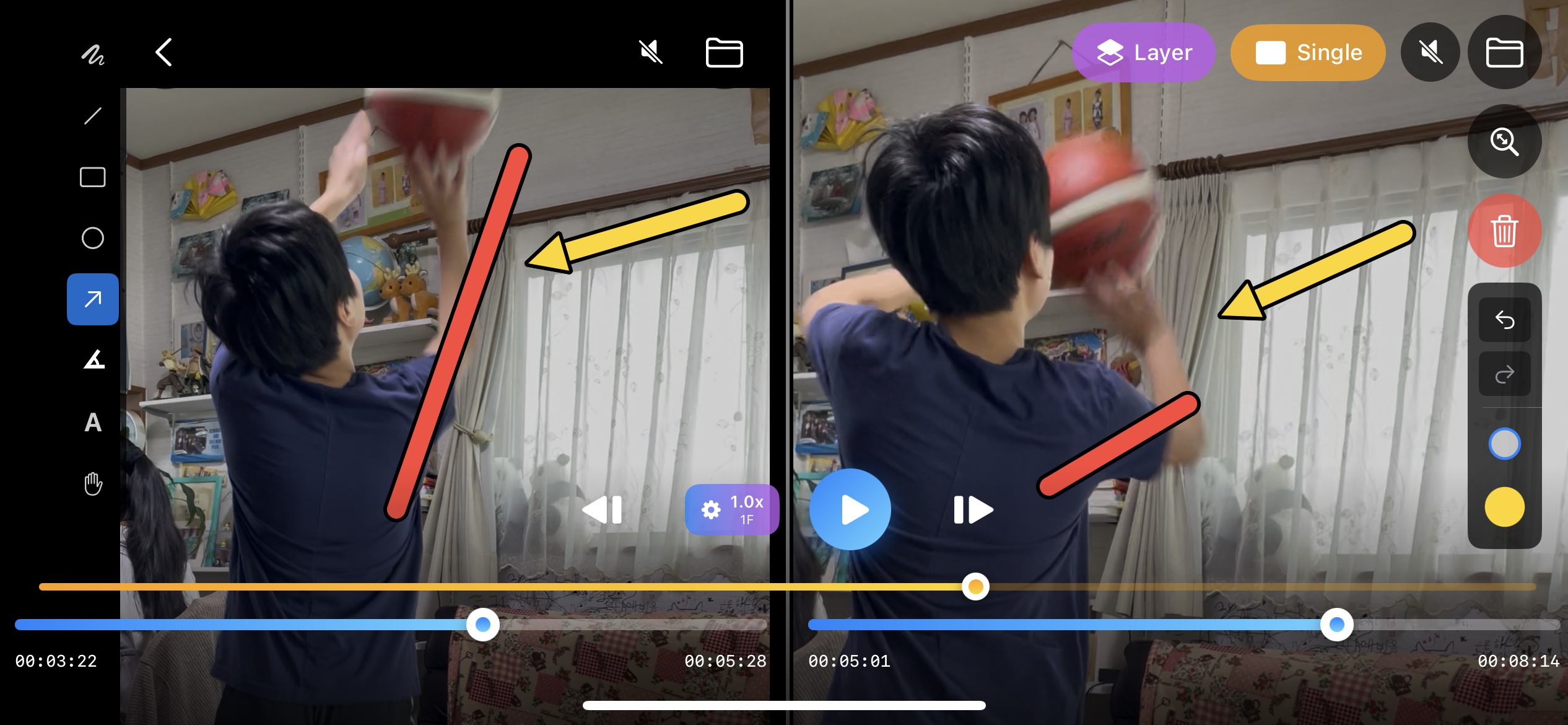
Side-by-side video comparison

Play two different takes side by side for instant comparison. Ideal for form checks, before/after review, and coaching.

Side-by-side comparison (free for 60 sec) Independent zoom & pan for each video Individual seek / synced seek Field-friendly controls
Markup

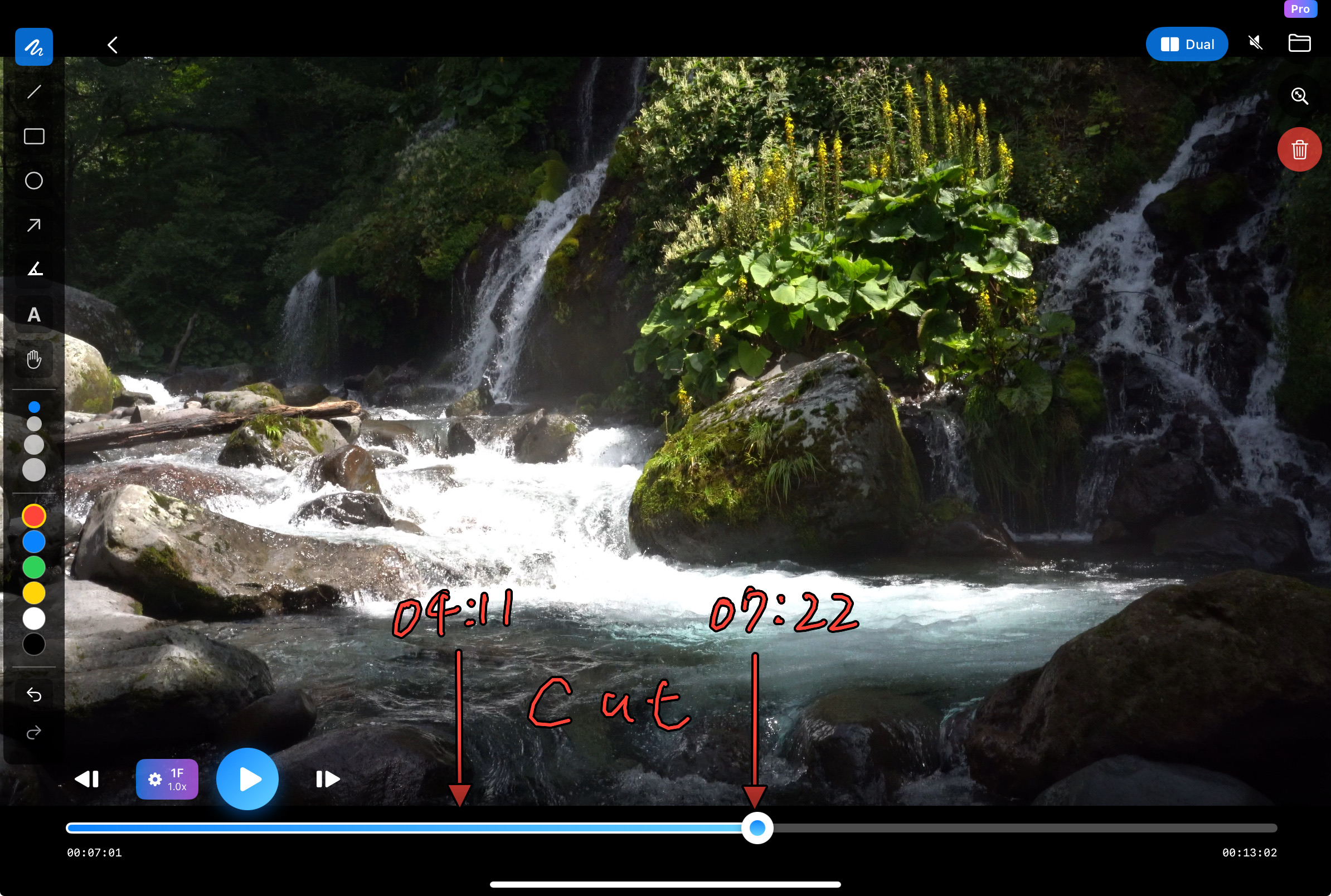
Draw directly on video

Freehand, lines, circles, arrows, angles — mark the key points right on the spot to make what matters immediately clear.

Lines, shapes & angle display (free) Individual object move (free) Text input (Pro) Individual object delete (Pro)
Layer Mode

Overlay two videos

Overlay reference footage and your own movement to see differences in posture, timing, and form more precisely.

Overlay display to reveal differences (Pro) Ideal for comparing with reference footage (Pro) Great for repetitive motion analysis (Pro)
Precision Analysis

Slow motion, frame-by-frame & zoom

Slow motion, frame stepping, zoom, pan, and alignment — examine subtle differences down to the finest detail.

Slow motion (free) 0.2x slow / advanced frame stepping (Pro) Edit while maintaining zoom state (Pro)

From sports to performance to video production

Golf swing comparison, team tactics, dance review, video direction, talent development and training. Wherever movement matters, Motion Marker works.

Golf Baseball / Softball 🎾Tennis 🏊Swimming Soccer
Golf swing comparison Form comparison across all sports Team tactics review Dance and performance review Visual direction for creators
Comparing two videos side by side for sports form analysis in Motion Marker
Drawing markup on a video for analysis in Motion Marker on iPhone

Start free. Go Pro when you're ready.

Download for free and start using it today. Upgrade to Pro when you want to go deeper.

Free

Free

Download and start right away. Try the core features with no time limit.

$0 free forever
Single video playback & analysis
Dual side-by-side comparison (60-sec limit)
Drawing tools (lines, shapes, angles)
Slow motion & frame stepping
Zoom & pan
Layer Mode
Text input
0.2x slow / advanced frame stepping
Individual object delete
Pro

Pro

Every feature you need for serious analysis. For coaches, athletes, and creators.

$29.99/ year (about $2.50/mo) ✦ 7-day free trial
Everything in Free
Layer Mode
Text input
0.2x slow motion
Advanced frame stepping (1/2/5/10 frames)
Individual object move & delete
Edit while maintaining zoom state
Unlimited Dual Mode

Show it. Make it click.

With Motion Marker, communicate movement more intuitively.

✦ Free plan available. Download and try it today.

Pro includes a 7-day free trial. Upgrade anytime from within the app.

📱 Record Your Voice with Screen Recording

Draw and annotate in MotionMarker while narrating — capture your voice and screen together using iOS's built-in Screen Recording feature.

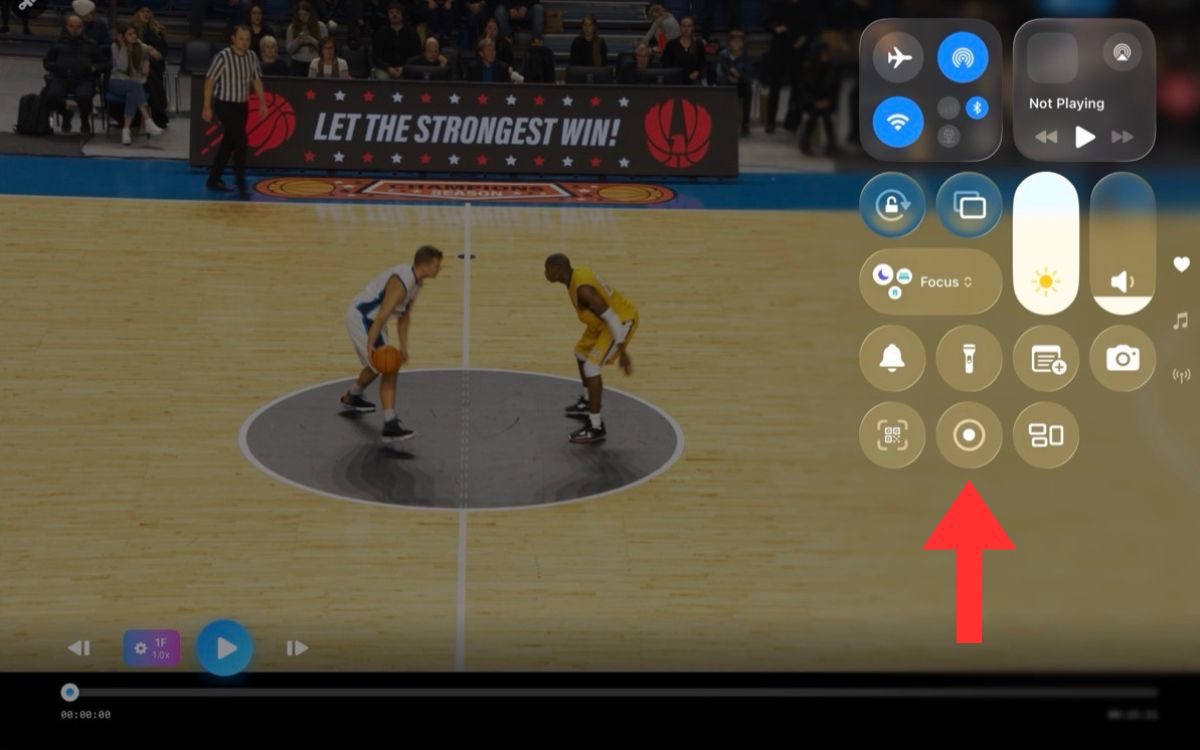
Screen Recording button in Control Center
Step 1
Open Control Center and tap Screen Recording
Swipe down from the top-right corner (or swipe up on older iPhones) to open Control Center, then tap the record button. A 3-second countdown starts and recording begins.
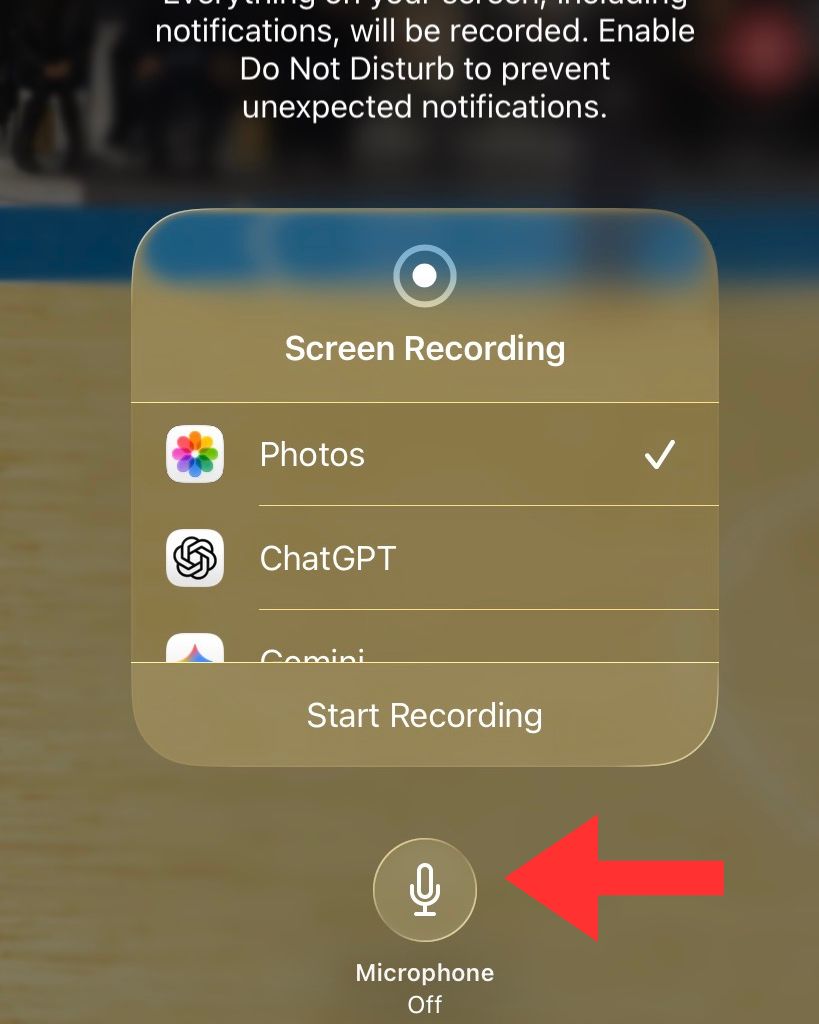
Turn on the microphone
Step 2
Long-press the record button → turn Mic On
Long-press the Screen Recording button to reveal options. Tap "Microphone" to enable it — your voice will be recorded alongside the screen, perfect for commentary and coaching.